How to make a QR code menu
From a photo of your paper menu to a code on every table, in six steps.
Updated · 6 min read
A QR code menu is a web page with your menu on it, plus a printed code that opens the page. Guests point their phone camera at the code and the menu opens in the browser. They need no app. Done well, it's faster to read than paper, always current, and cheaper than reprinting every time a price changes.
1. Gather the menu you have
Start from the menu you print today. Write down every section, every dish and every price, and note the allergens for each dish. If you serve in more than one language, collect the translations now. Getting this list right is most of the work; the rest is layout.
2. Build the menu page
Use a menu builder rather than a PDF. A PDF makes guests pinch and zoom a page designed for A4 paper; a real menu page reflows to the phone, loads quickly and lets you change one price without redoing the file. In KiwiiMenu you can type the menu in, paste it, or start from a template for your kind of place.
- Keep section names short: Starters, Mains, Desserts, Drinks.
- Put the price on the same line as the dish name, so the eye doesn't hunt for it.
- Write descriptions as ingredients, not adjectives.
- Mark vegan, vegetarian and gluten-free dishes with words, not icons only.
3. Choose a design guests can read
Restaurants are often dim, and the guest may be holding the phone at arm's length. Choose body text of at least 16 pixels and strong contrast between text and background. Dark themes suit bars; light themes suit cafés and daytime dining. Avoid thin, light fonts for prices.
4. Publish it
Publishing gives the menu a permanent address. In KiwiiMenu, edits stay in a draft until you press Publish, so you can prepare tomorrow's menu without guests seeing half-finished changes. Every publish is saved as a version you can roll back to.
5. Make a dynamic QR code
A static QR code stores the address itself; a dynamic code stores a short link that you can point somewhere else later. For a menu, use a dynamic code: if you ever move the menu, switch platforms or open a second location, you change the destination instead of reprinting every table card. KiwiiMenu's dynamic codes aren't on sale yet; the plan is $4.99 per code, paid once, and the code will keep working whether or not you keep a subscription.
6. Print it and test it
- Print the code at least 2.5 cm (1 inch) wide for a table; larger for walls and windows.
- Leave a clear margin of four modules (the small squares) around the code.
- Print a dark code on a light background, on matte paper to avoid glare.
- Add a line of text such as 'Scan for the menu' so guests know what it is.
- Test with an iPhone and an Android phone, in the room's real lighting, before you print 40 copies.
Keep it current
The advantage of a digital menu is lost if it goes stale. Make updating part of the routine: mark dishes sold out during service, update prices when the supplier's do, and check the menu on your own phone once a week.
Made for places like these
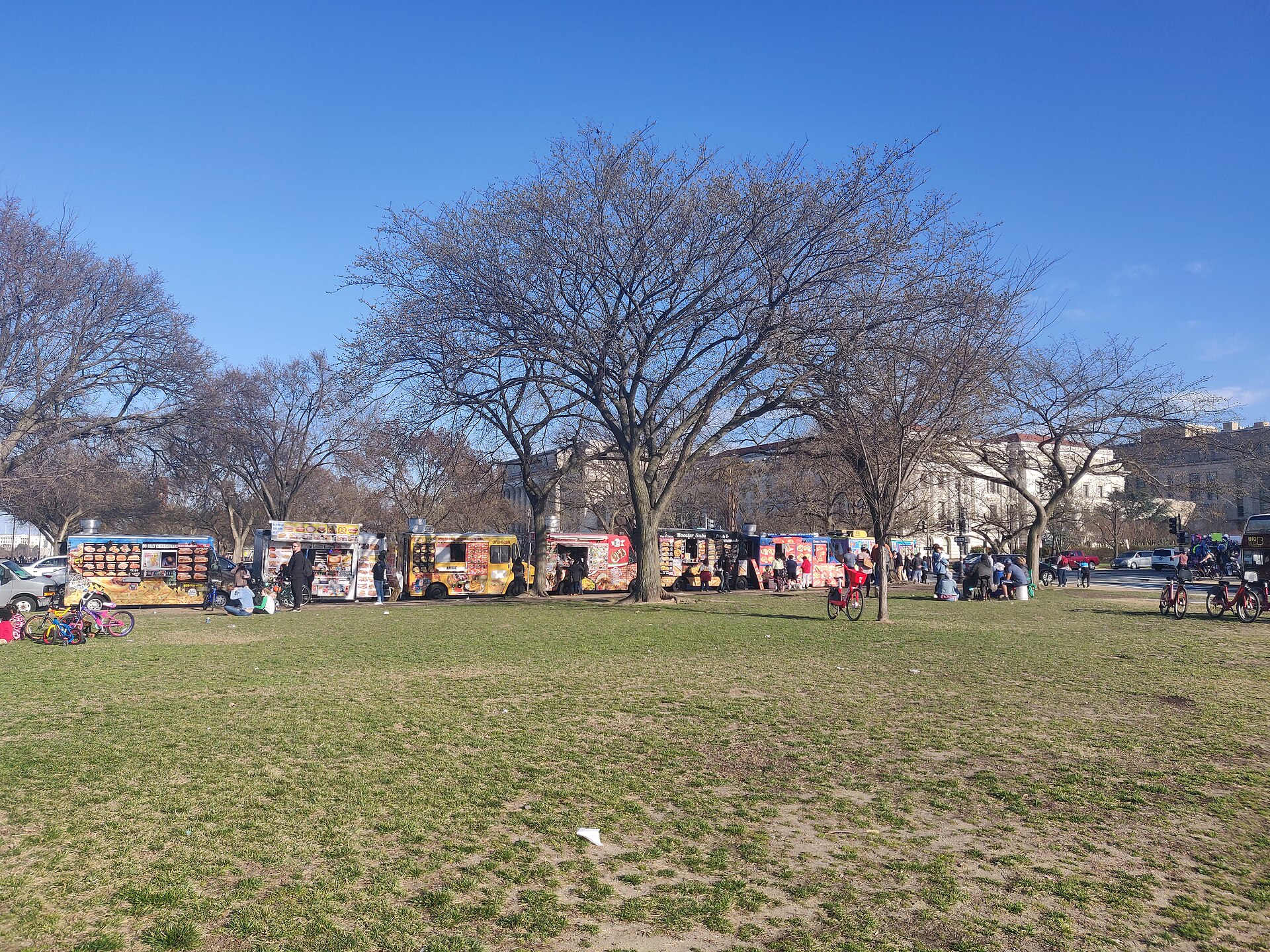 QR menus for food trucks
Photo: Food trucks next to national mall, CC0, via Wikimedia Commons 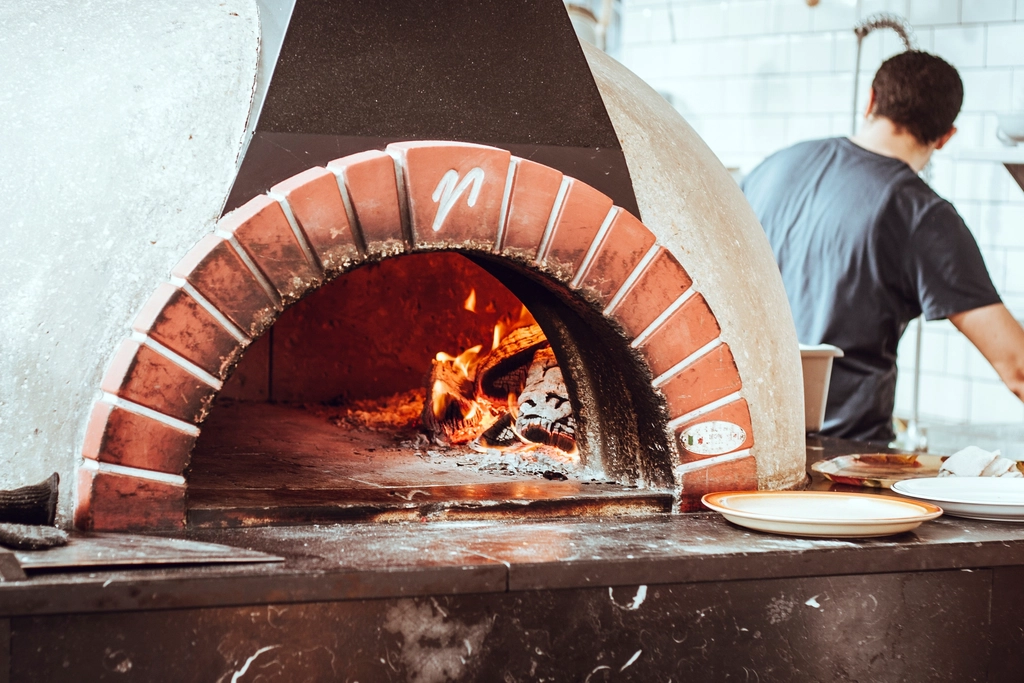 QR menus for pizzerias
Photo: Pizza oven, CC0, via rawpixel 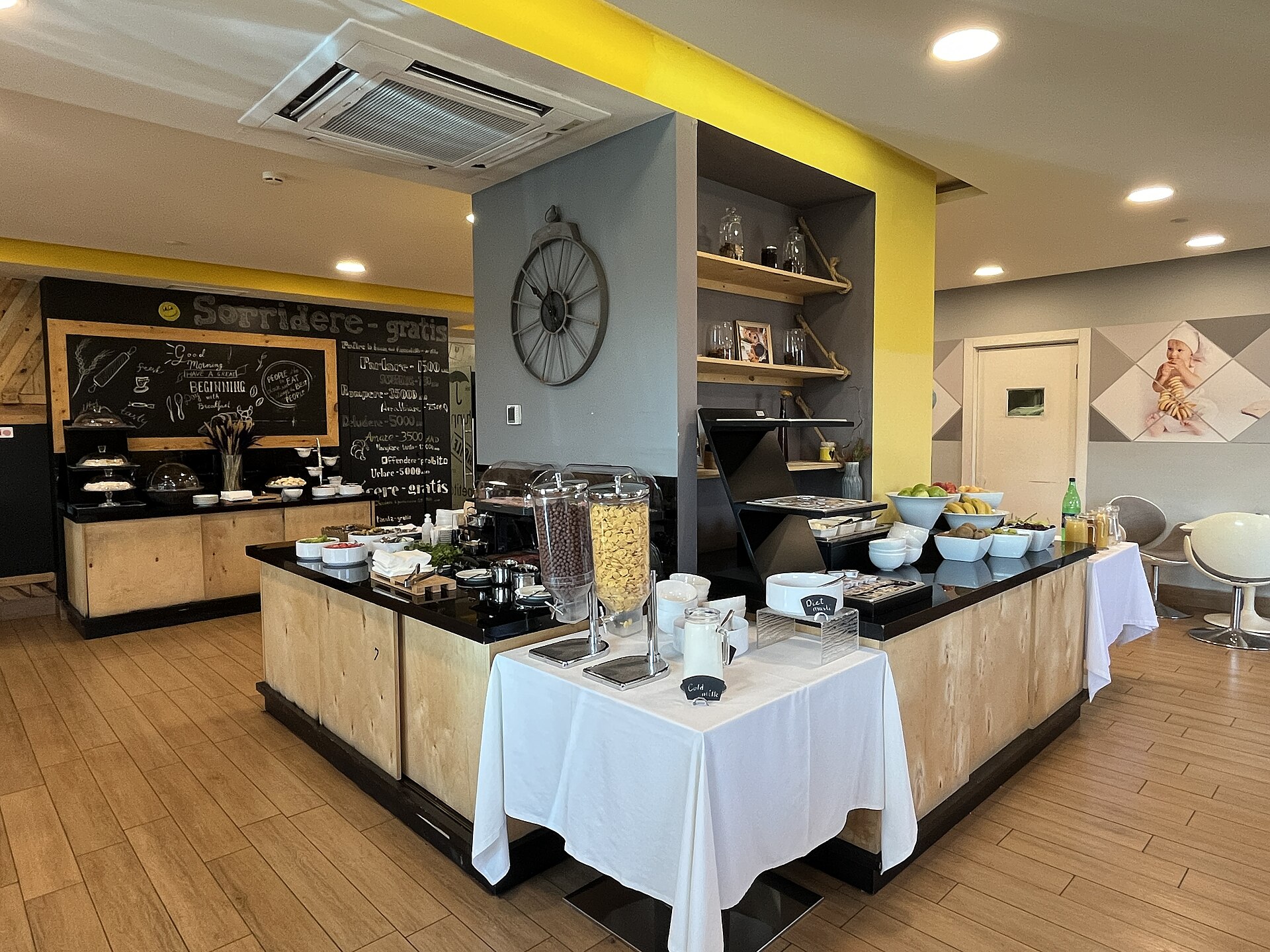 QR menus for hotels
Photo: Breakfast room in Opera Suite Hotel Yerevan (June 2023), CC0, via Wikimedia Commons 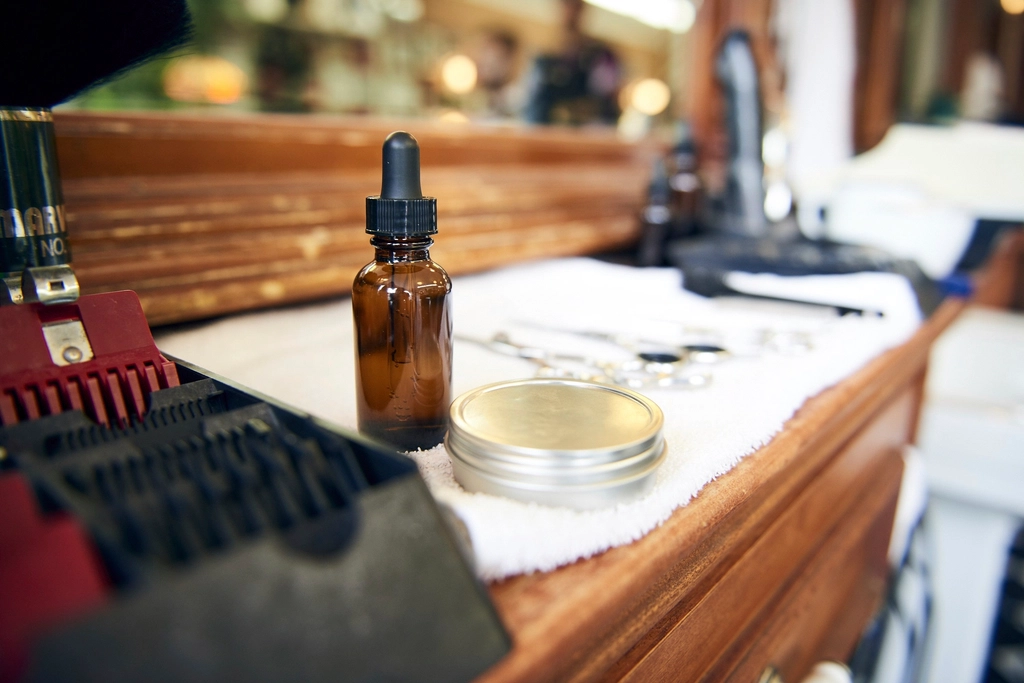 QR menus for salons and spas
Photo: Hair salon, CC0, via rawpixel